Showing posts with label OnePlus. Show all posts
Monday, December 14, 2015
Friday, November 13, 2015
OnePlus X with Coupon USD 241 (no invitation needed)
ONEPLUS X 4G 3GB Smartphone - WHITE
5.0 inch Android 5.1 Qualcomm Snapdragon 801 Quad Core 2.3GHz 3GB RAM 16GB ROM Corning Gorilla Glass 3 Screen 8MP + 13MP Cameras
Use Coupon PLUSXML price is reduced to USD 268.88. Free shipping.
16GB ROM is small but since OnePlus X supports up to 128G microSD, this is not a big problem.
Latest Xiaomi RedMi Note 3 only USD 209
Saturday, May 16, 2015
Solve One Plus One Wi-Fi Internet Connection Issue After Upgrading to Cyanogen 12
My One Plus One starts getting Wi-Fi Internet connection issue after upgrading to Cyanogen 12 (Android 5). Wi-Fi always shows connected. However, there is no Internet connection from time to time. Turn off and turn on Wi-Fi can fix the problem but after a few minutes, the Internet connection is lost again.
My router is pretty new ASUS RT-AC68U and support both 2.4GHz and 5GHz. It seems changing the Wi-Fi setting by turning off Scan always available and only connect to 2.4GHz and solve this problem.
Here is how:
Go to Settings, select Wi-Fi, then open the menu at top right corner and select Advanced.
Turn off Scanning always available.
Select Wi-Fi frequency band (default is Automatic).
Choose 2.4GHz.
My router is pretty new ASUS RT-AC68U and support both 2.4GHz and 5GHz. It seems changing the Wi-Fi setting by turning off Scan always available and only connect to 2.4GHz and solve this problem.
Here is how:
Go to Settings, select Wi-Fi, then open the menu at top right corner and select Advanced.
Select Wi-Fi frequency band (default is Automatic).
Choose 2.4GHz.
Friday, November 14, 2014
Tips on how to use OnePlus One Phone (3)
Slow Motion Video
Do you know OnePlus can take slow motion video like iPhone 6? The interface for slow motion is not as easy as iPhone but once you know how to do it, it is no hard.First, you can choose the Size. If you choose 1080p, the Slow Motion can only provide 60FPS, which may not be smooth enough. So I recommend choosing 720p as the Size and then choose 120FPS for Slow Motion.
One this is done. All the videos you taken will be slow motion video. If you want to switch back to normal video, you need to go back to the same setting place and turn off the Slow Motion.
Quiet Hours
Want to automatically turn off the sound for all the notifications and phone calls during sleep time? You can use the Quiet Hours feature to achieve that.
Go to Settings, Sound, Quiet hours, choose when the quiet time time range and what to turn off during that time.
Note that the QUIET HOURS title in the Quick Setting Panel is not equivalent to Enforce quiet hours in Quiet hours settings. If you enable QUIET HOURS tile, it will enforce quiet hours right away and ignore the schedule. This means even current time is not quiet hours, the sound and light will be turned off always. So do not turn on QUIET HOURS tile if you still want to receive notification light and sound.
Profiles
You can define multiple profiles, each profile can defines a list of actions like turn off GPS, Bluetooth, Sync, NFC, Notification. For each profile you can manually choose or triggered automatically through NFC tag, Wi-Fi network or Bluetooth connection.
For example, you can define a Home profile and remove Lock screen mode. Then define the home Wi-Fi network as the trigger. So once you are in home (connected to home Wi-Fi), you no longer need to unlock the screen. Similarly, you can define a Work profile triggered by Wi-Fi network of your company and set sound of all notifications to off.
Another example, is create a Automobile profile and triggered by connecting to the Bluetooth on you car. The Automobile profile defines GPS enabled so that you can use it to navigate.
OnePlus2 Killer: Lenovo ZUK Z1 USD 284
OnePlus2 Killer: Lenovo ZUK Z1
OnePlus One: How to solve problem of no notification sound and light
This is quite inconvenient, suddenly there is no notification sound and lights for any events, like hangout message, GMail. Even the notification is displayed on the status bar.
First thing to check is if you have Quiet hours (Under Sound setting) enabled and current time is between the start and end of the quiet hour.
If current time is not quiet hours and even you disable Enforce quiet hours, there is still no notification sound and light. Next thing to check is if you have the QUIET HOURS tile turned on in the Quick Setting Panel.
So to solve this problem for now, you just need to tap on the QUIET HOURS tile to disable it (grey out). This should fix the problem.
Thursday, November 13, 2014
Tips on how to use OnePlus One Phone (2)
Capacitive keys
Although I get used to the on screen key (my previous phone is Nexus), I still set my OnePlus One to use capacitive keys to get more screen space. Another reason is that you can add more functions to the capacitive keys for long press or double-taps.
Under the Buttons setting, I set Long press action for Home button to invoke Search assistant (Google Now). Double tap Home button will display the Recent apps switcher (similar to the right on screen key). Long press on Menu button will switch back to last app.
Even on the lock screen, you can give more functions to the capacitive keys. Under Settings, Button actions, you can add more actions to capacitive keys. For example, you can choose Home unlock. This means after you double-tap to turn on the screen, you can just press on the Home button to unlock, no need to slide.
Under the Buttons setting, I set Long press action for Home button to invoke Search assistant (Google Now). Double tap Home button will display the Recent apps switcher (similar to the right on screen key). Long press on Menu button will switch back to last app.
Even on the lock screen, you can give more functions to the capacitive keys. Under Settings, Button actions, you can add more actions to capacitive keys. For example, you can choose Home unlock. This means after you double-tap to turn on the screen, you can just press on the Home button to unlock, no need to slide.
Battery Status Reset
Battery status on OnePlus One has a additional feature which allows you to reset the battery status.
Just click on the Garbage icon on the top right corner. The battery status will reset. This is useful when you want to check if any action you take has immediate impact on the battery power consumption.
USB OTG Support
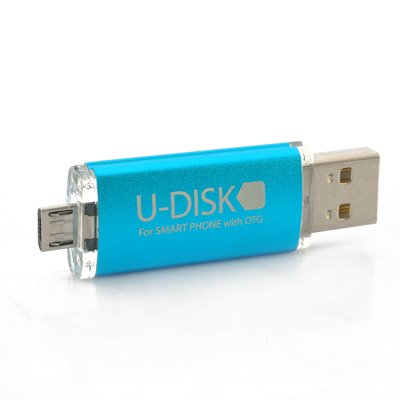
OnePlus One supports USB OTG out-of-the-box. No need to install any software or root, just plugin a USB OTG cable and a USB drive, or directly plugin a OTG USB drive.
Once plugin, the Storage settings will be displayed and shows the options of Unmount and Erase. Now you can use File Manager to browse the content in the USB drive. You can directly view the photos or play movie in the drive.
Tips on how to use OnePlus One Phone (1)
Lock Screen
The default lock screen on OnePlus looks like the one on the left (Custom lock screen). But I like the right one since it has Slider shortcuts. You can slide to unlock and open the application in one step. It also displays calendar events when you slide down the Clock widget.
To get the lock screen with slider shortcuts, you just need to un-select Custom lock screen in the Lock screen setting. Clicking on the Clock widget allows you to configure what to display, time, weather or calendar events.
To display all events on lock screen you need to select display next event and un-select Reminders only.
By selecting Camera widget, slide to the left on the lock screen brings out the Camera. Select Custom widgets, sliding to the right on the left allows you add more lock screen widgets.
To configure the slider shortcuts, you select Slider shortcuts under Lock screen setting, then slide to the position you want to update. A list of apps will be displayed. If the one you want to add is not in the list, select Apps to get the list of all apps.
Google Now Launcher
If your previous phone is Nexus, you may prefer the Goolge Now Launcher. So you can get transparent status bar and launching Google Now by swiping to the right.
You can down load the Google Now Launcher from Google Play store.
https://play.google.com/store/apps/details?id=com.google.android.launcher&hl=en
Once installed, you can select Google Now Launcher as default Home in the Home setting.
Gestures
Black Screen gestures is introduced by LG G2 (like double-tab to wake). OnePlus also has gestures support and it provides more useful gestures. This is another area iPhone needs to catch up.Double-tap - Turn on screen
I use this all the time. No need to reach for the tiny Power button! This is so important for a phone without physical home button.
This gesture should be enabled by default. If not, you can select it under Display & lights setting.
Double-tap on Status Bar - Turn off screen
Status bar is located at the top of the screen (where battery status, time are displayed). Again save you from reaching for the Power button and also help on saving battery.
This gesture should be enabled by default. If not, you can select it under Status bar setting.
If you are on the lock screen, you can double-tab any places on the screen to turn off screen. This is convenient if you just want to check the time/weather/event display on the lock screen. Just double-tap turn on screen and double-tap again to turn off.
Draw circle - Activate camera
With screen off, draw a circle (does not need to be perfect) can turn on screen and open camera. This is my favorite gestures.
Draw a V - Turn on or off flashlight
With this feature, OnePlus phone is more convenient than a real flashlight.
Draw fingers vertically - Play/pause music
With these gesture, OnePlus phone can play music without need to turn on and look at screen (as convenient as iPod). What I found is that the you have to draw the vertical line long enough (like half of the screen) to be recognized.
Sometimes the music play may be triggered accidentally, for example, when you just wiping the dust from the screen. You may want to disable this gesture in this case.
Draw arrow - Play Next/previous track
Draw > Play next track. Draw > Play previous track. You can also achieve the same thing by long pressing volume up/down key while screen is off.
Notification Light
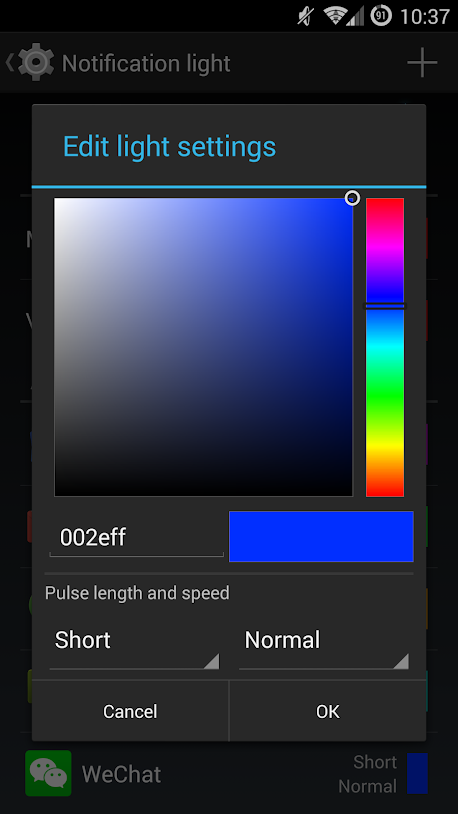
One of the good features Android phone has but iPhone does not has is the notification light. However, Nexus doe not provide options for you to customize different color for notification for different apps. You may need to buy some third party apps to do that like (Light Flow).Good news is OnePlus One provides this feature out-of-the-box, so you no longer need to install Light Flow. This may save your some memory.
To configure different color for different applications, you can go to Display and lights settings, select Notification light.
In the following screen, select Use custom values and then tap the + sign on the top right corner to choose the apps you want to configure notification light color. You can configure the color, pulse length and speed.
More topics:
OnePlus2 Killer: Lenovo ZUK Z1 USD 284
OnePlus2 Killer: Lenovo ZUK Z1
Tips on how to use OnePlus One Phone (1)
How to save OnePlus One battery
Tuesday, November 11, 2014
How to save OnePlus One battery
OnePlus One has 3100 mAh battery and 3G memory. But this does not mean you can always get good battery performance. Following are some tips on how to save OnePlus One battery (many tips also applies to other Android phones).
Turn of un-used Google Sync
By default Google turn on most of the Sync options. If you don't use some of the Sync options, you can turn them off to save battery.For example, if you do not buy books, movies, music and magazines from Google, you can turned these Sync options off.
Google+ Uploads Sync is for Auto Backup your photo to Google+. So do not turned this off if you want this feature.
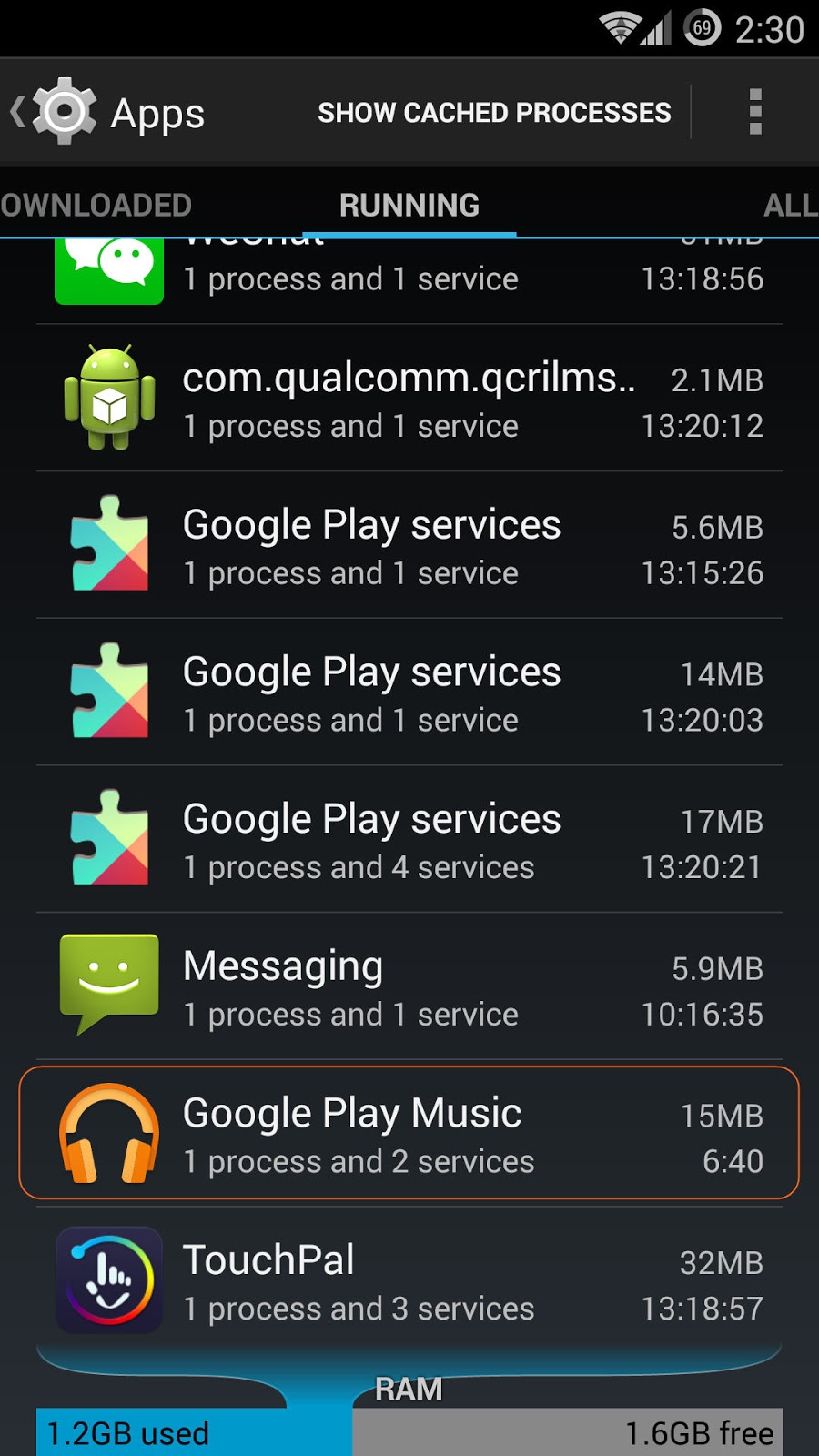
Set Google Music to Downloaded Only
If Downloaded only is turned off, the Google Play Music process is always running, even you quite the Google Play Music app.If you do not use the music service provided by Google and just play the music on you local storage, you can turned Downloaded only option on. To do that, just go to Google Play Music app and tap on the top left corner to display the menu and turned on the Downloaded only option.
Remove Themes Process
There is a running process called Themes. It is for the Themes to read all the notification.If do not use the Themes or do not need Themes to handle notifications, you can remove this running process by following the steps below. This can free a little memory and may help on saving some battery power.
Go to Security and Select Notification access. Then un-select Themes. The Themes process will be removed from the running processes list.
Set Performance Profile to Power Save
Under Performance, you can choose the Performance Profile to be either Power Save, Balanced or Performance.If Power Save is more important to you (like you never use the phone to play large 3D games), you can set the Performance Profile to Power Save.
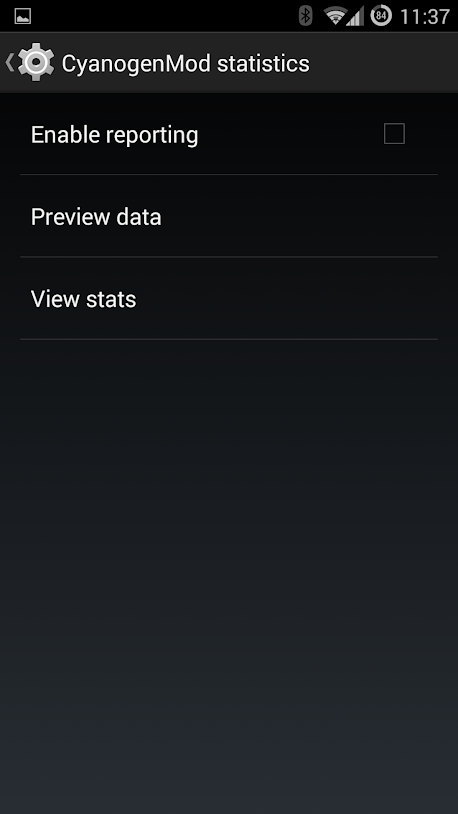
Turn off Statistics and Logging
Under the Privacy setting, you can choose to turn off CyangenMod statistic and Anonymous crash logging to save battery power and free some memory. Since choose these options will cause some long-running process in the memory.Turn on Double-tap to sleep
By turning on this option, you can double-tap on the Status bar at top of the screen to turn off the screen. No need to wait for the screen timeout.
Turn off NFC
NFC can be used for exchanging files between phones, mobile payment and NFC tag. If you do not use NFC, you can turned off to save batter power. You can turn on anytime when you want to use it.Turn off LTE
LTE is fast but use more battery power than 3G. If you just use phone to send message, read some news (not watch Youtube and download large files), you can choose 3G instead of LTE.
You can turn on/off LTE easily in Mobile network settings or the Quick Setting Panel.
Turn off Bluetooth
If you do not use Bluetooth, you can turn it off to save battery too.
Turn off Location Service
Location service in may cases is the most important factor of battery drain. You can turn off location service and only turn on when you needed like taken a photo needs to remember location or use GPS to navigate.
Even if you need to turn on Location Service, you can also choose not to report location and location history.
Kill/Uninstall Battery Offenders
By looking at the Battery screen under Settings, you can identify if there are any apps which use lots of battery power. If there is a apps uses lots of battery even you are not use it, I suggest you can stop it by tap on that app and choose Force stop. If this app keeps coming back you can uninstall it.By looking at the Awake and Screen on lines in the History details, you can determine if there is something wrong. This two lines should have similar pattern. If the screen is off but Awake is on, there must by some app keep the phone wake up even screen is off. You can try to find that app by using a powerful tool provided by Cyanogenmod - Privacy Guard.
Use Privacy Guard to fine-tune
Go to Settings - > Privacy -> Privacy Guard. Select the menu button at the top right corner. Then select Advanced.
Advanced view shows the activities of all services and applications in detail. You can see which services or applications are running and when running. Also how many requests they made, like request the locations. If you find some services or applications have lots of requests and you do not need that (for example, a music player make request for location or modify contacts), you can deny the requests by tap on this service or application and then choose the Denied.
Following sample shows the LocationServices makes lots of request to Keep awake (even screen is off). This may consume lots of battery power. You can try Deny this kind of request. This might significantly improve standby time. But you need to be careful since some functions may not work.
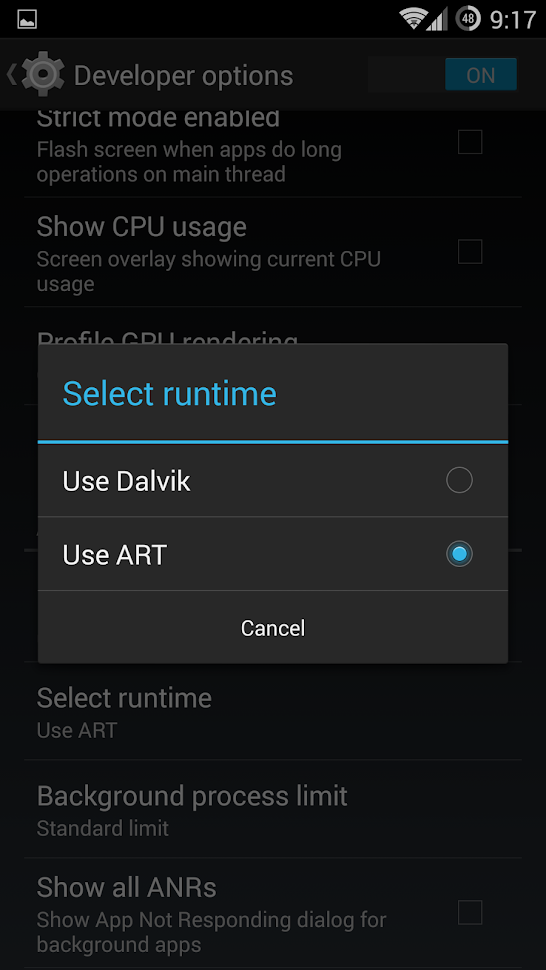
Use ART to replace Dalvik runtime
With developer option turned on, you can change the runtime from Dalvik to ART, which is supposed to be faster and more power efficient. ART is now standard in Android 5.0.Once you choose ART runtime will be restarted and will compile all the applications one by one.
Use Hibernate Mode during night
Under the Developer options, you can enable QuickBoot mode:
With this mode on, when you long press the Power button and choose the Power off option, the phone is not really power off. It is kind of entering the Hibernate mode. It is quick (only takes 1 second). To come back, long pres the Power button again, it only takes 2 seconds to return the previous state of your phone.
This mode is very useful if you want to save maximum battery at night (better than the Airplance mode).
More topics:
OnePlus2 Killer: Lenovo ZUK Z1 USD 284
OnePlus2 Killer: Lenovo ZUK Z1
Tips on how to use OnePlus One Phone (1)
Subscribe to:
Posts (Atom)


.png)